
Get more from your Voice Caddie SC4.
Your SC4 or SC4 Pro already records every shot. Export your practice data from the Voice Caddie S app and RangeRecap turns it into recaps, honest dispersion, your real club distances and goals you can track.
- Models
- SC4, SC4 Pro
- Export from
 Voice Caddie S app
- File type
- CSV
How to export
From the Voice Caddie S app to RangeRecap
On iPhone
- 1
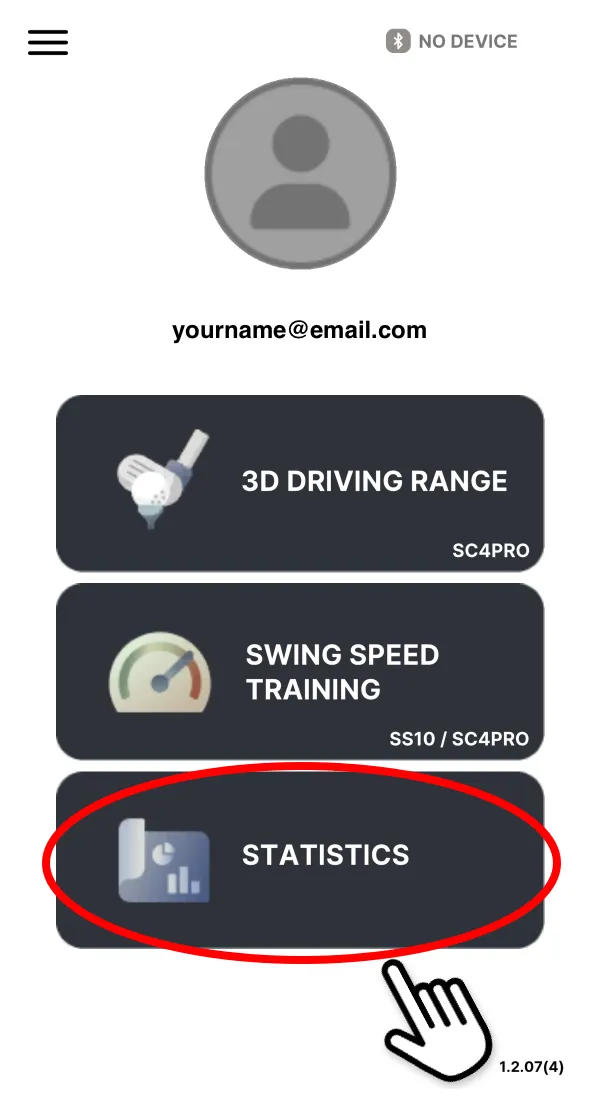
Open Statistics
In the Voice Caddie S app, tap Statistics on the home screen.
- 2
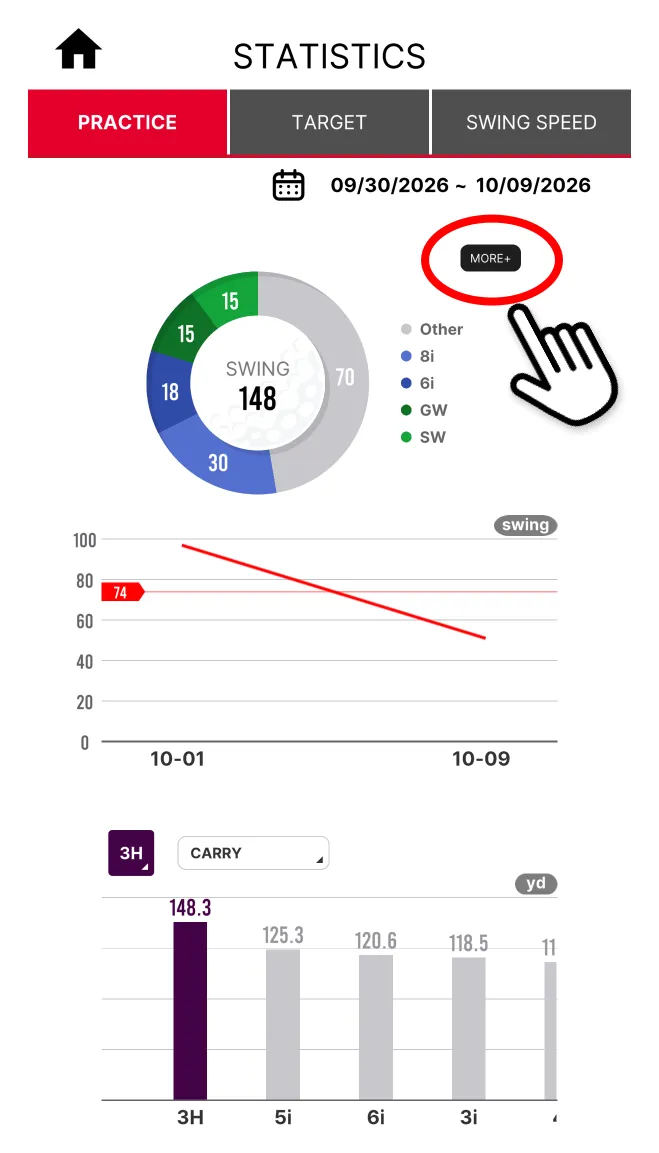
Tap More+
On the Practice tab, tap More+ to open the table of every shot.
Tip: The dates at the top set which sessions are included. Tap the calendar to cover every session you want to bring in.
- 3
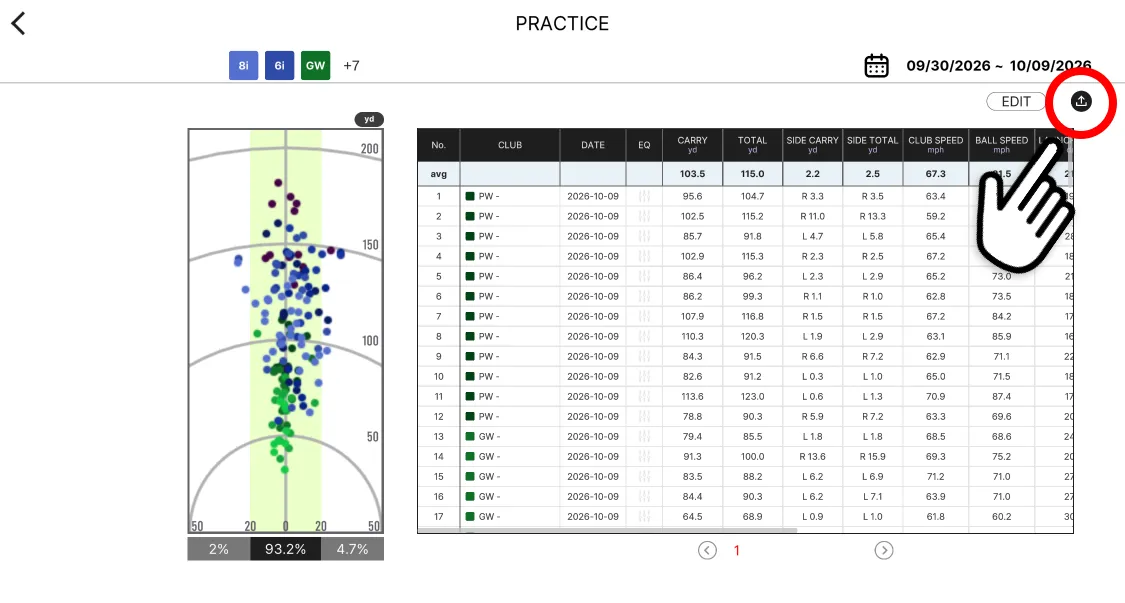
Tap the export icon
In the shot table, tap the export icon at the top right, next to Edit.
- 4
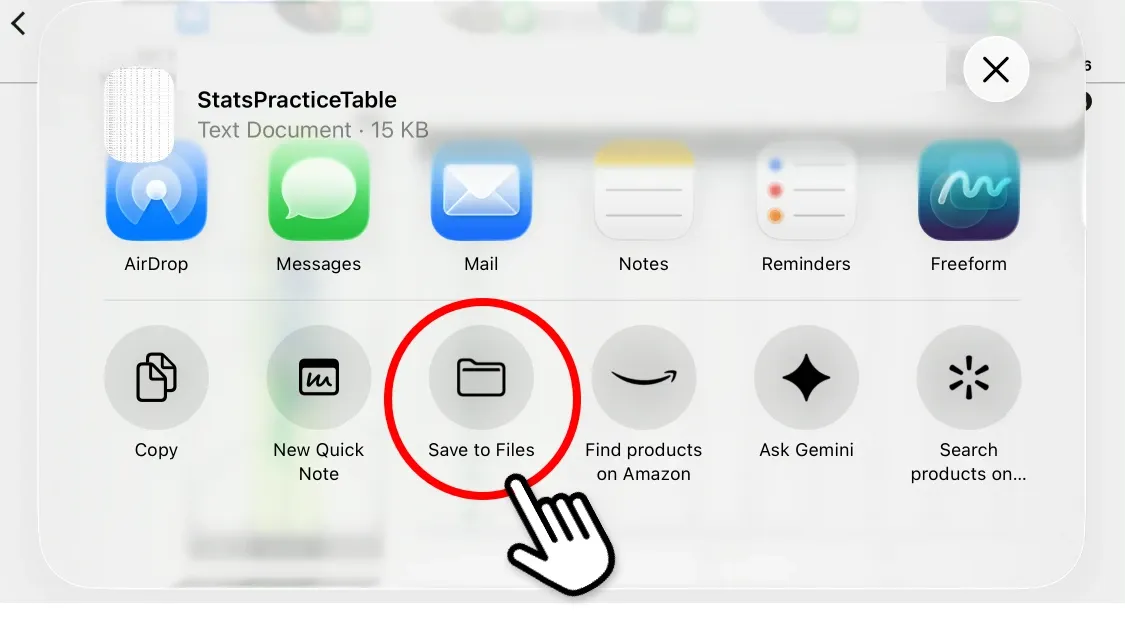
Save to Files
In the share sheet, tap Save to Files and choose a folder. The file is called StatsPracticeTable.
- 5
Import it into RangeRecap
Open RangeRecap, go to Import, and choose StatsPracticeTable from the folder you saved it to. Your sessions appear straight away.
What RangeRecap reads from your CSV
Every column the export carries, in the units it was recorded in. Each one gets a row on the club pages, with the median first and the range beside it.
Distance
- Carry
- Total
- Side carry
- Side total
- Apex height
Speed
- Club speed
- Ball speed
- Smash factor
Launch
- Launch angle
- Launch direction
Spin
- Total spin
- Spin axis
- Back spin
- Side spin
The file’s quirks, handled
Every export format has its habits. These are the ones in the Voice Caddie SC4 and SC4 Pro file, and what RangeRecap does about each, so the numbers you read are the numbers you hit.
Export any range, as often as you like
Export a week, a month or everything since you started. Shots RangeRecap has already seen are skipped, so overlapping exports never count a shot twice.
Left and right, read correctly
The export writes side distances as “L 15.5” and “R 11.9”. RangeRecap reads the direction, so your misses land on the correct side of the plot.
Missed readings left out, not counted as zero
When the monitor could not take a reading, the export writes “--”. RangeRecap treats it as missing, so one unread shot cannot drag an average down.
Club nicknames that stay with the club
Rename a club in the Voice Caddie app and the next export carries the new name across your history. RangeRecap recognizes the rename and keeps the club’s history together.
A smash factor worth trending
The export rounds smash factor to one decimal, which hides small changes. RangeRecap works it out again from club and ball speed, so a trend can show.
Your units, either way
Yards or meters, mph or m/s: RangeRecap reads the units from the file, and you can switch the display whenever you like.
Impossible readings set aside, in plain view
Now and then a reading cannot describe a real shot, like a spin axis past vertical. RangeRecap drops that one reading, keeps the rest of the shot, and tells you what it set aside.
What your Voice Caddie data turns into
Session Recap
Walk off the range knowing how it went.
Each session told as a story: what went well, what to focus on, and your goals.
Dispersion
See where every club really goes.
A true-scale shot map with rings that hold the shots they claim.
Caddie
Know which club to pull.
Your yardages for every club, and the club for the shot in front of you.
Goals
Practice toward something.
Set goals for carry, speed, strike and accuracy, and watch them move.
Voice Caddie SC4 and SC4 Pro questions
Does RangeRecap work with both the SC4 and the SC4 Pro?
Yes. Both export practice data from the Voice Caddie S app in the same CSV format, and RangeRecap reads it from either.
Do I need to export after every session?
No. Export whenever you like, with a date range that covers the sessions you want to add. Overlapping ranges are fine: RangeRecap only adds the shots it has not seen before.
What happens if I rename a club in the Voice Caddie app?
RangeRecap notices the new name on your next import, updates the club across your history and tells you it did, so the club keeps one history instead of splitting in two.
Does it work with metric units?
Yes. RangeRecap reads the units written in the export, meters or yards, and you can switch the display at any time.
Is RangeRecap made by Voice Caddie?
No. RangeRecap is an independent product by Leeward Interactive and is not affiliated with Voice Caddie. It reads the export file the Voice Caddie S app already provides.
Voice Caddie and its product names are trademarks of their owner. RangeRecap is an independent product and is not affiliated with Voice Caddie.
Your next bucket deserves a recap.
Import your last session and see what it says. Free, with no card needed.